
Voice Input & Media
You do not have to type. Click the mic, speak naturally — even for several minutes — and watch your words appear live in the input box. You stay in control: nothing is sent until you press send.
Click the mic in the input bar
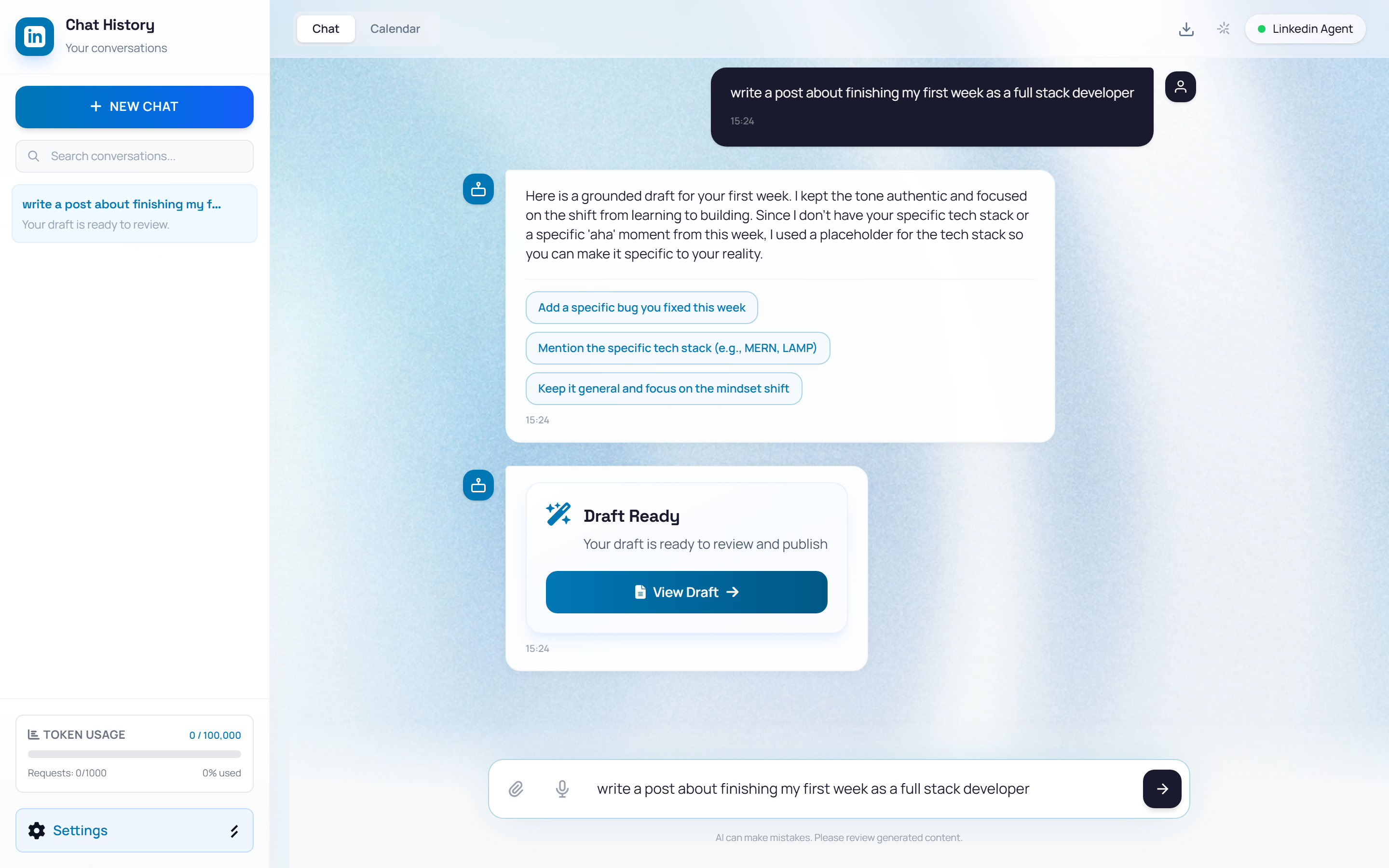
👉 The input bar at the bottom of the chat has three controls: an attach icon (photos/video), a microphone icon (voice input), and the send arrow. Click the mic — your browser asks for microphone permission the first time, click Allow. The button turns red and pulses while it listens.

Speak naturally — watch the live transcript
👉 Talk normally, as long as you need — the mic keeps listening through pauses until you stop it. Your words transcribe live into the input box as you speak, so you can watch the text form in real time.
Stop, review, and send
👉 Click the mic again to stop. Read the transcript, fix anything by typing, then press Enter or the send arrow. MonkX treats it exactly like a typed message and replies in the chat.
Attaching photos and video
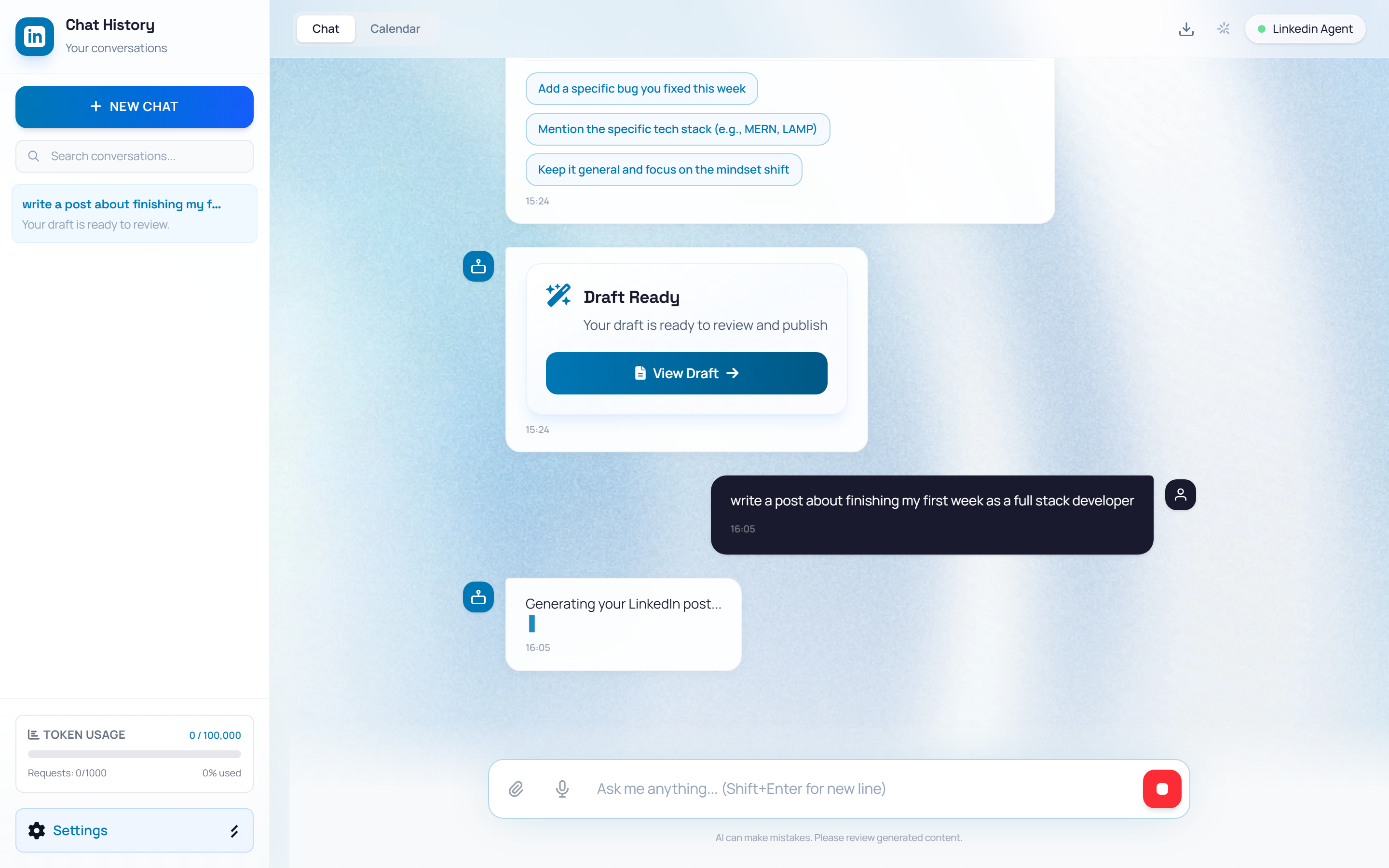
Click the attach icon (paperclip) on the left of the input bar and pick images (JPEG, PNG, GIF) or a video (MP4, WebM). Selected files appear as an Attached Media preview above the input — remove any file before sending if you change your mind. Attachments can be used as the image on your published post.