Dashboard Overview
The Dashboard at /dashboard is your central workspace. From here you can see all your AI agents, check system status, and navigate to any part of the platform.
What you see on the Dashboard
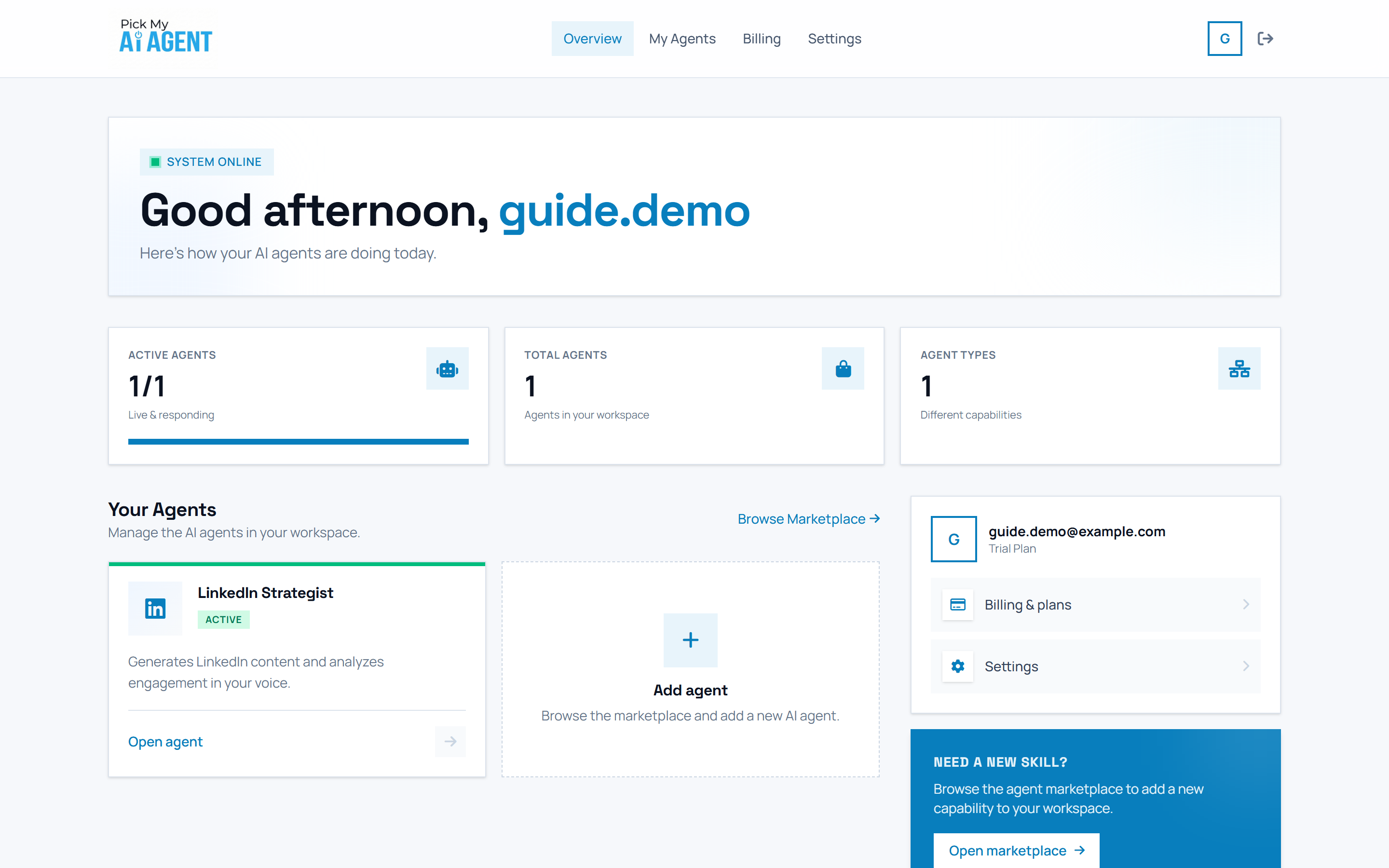
After logging in, you land on your Dashboard. It is divided into these areas:
Read the System Status and Stats
👉 At the top, a pulsing green "System Online" badge means all services are running, next to a personalised greeting. Below it, three stat cards show Active agents, Total agents, and Agent types.
Use the Your Agents grid
👉 Scroll to "Your Agents". Active agents show a coloured ACTIVE badge and an "Open agent" link — click it to enter its workspace. The dashed "Add agent" card opens the marketplace to add more. The right sidebar holds Billing & plans, Settings, and a marketplace promo.
Browse all agents in the marketplace
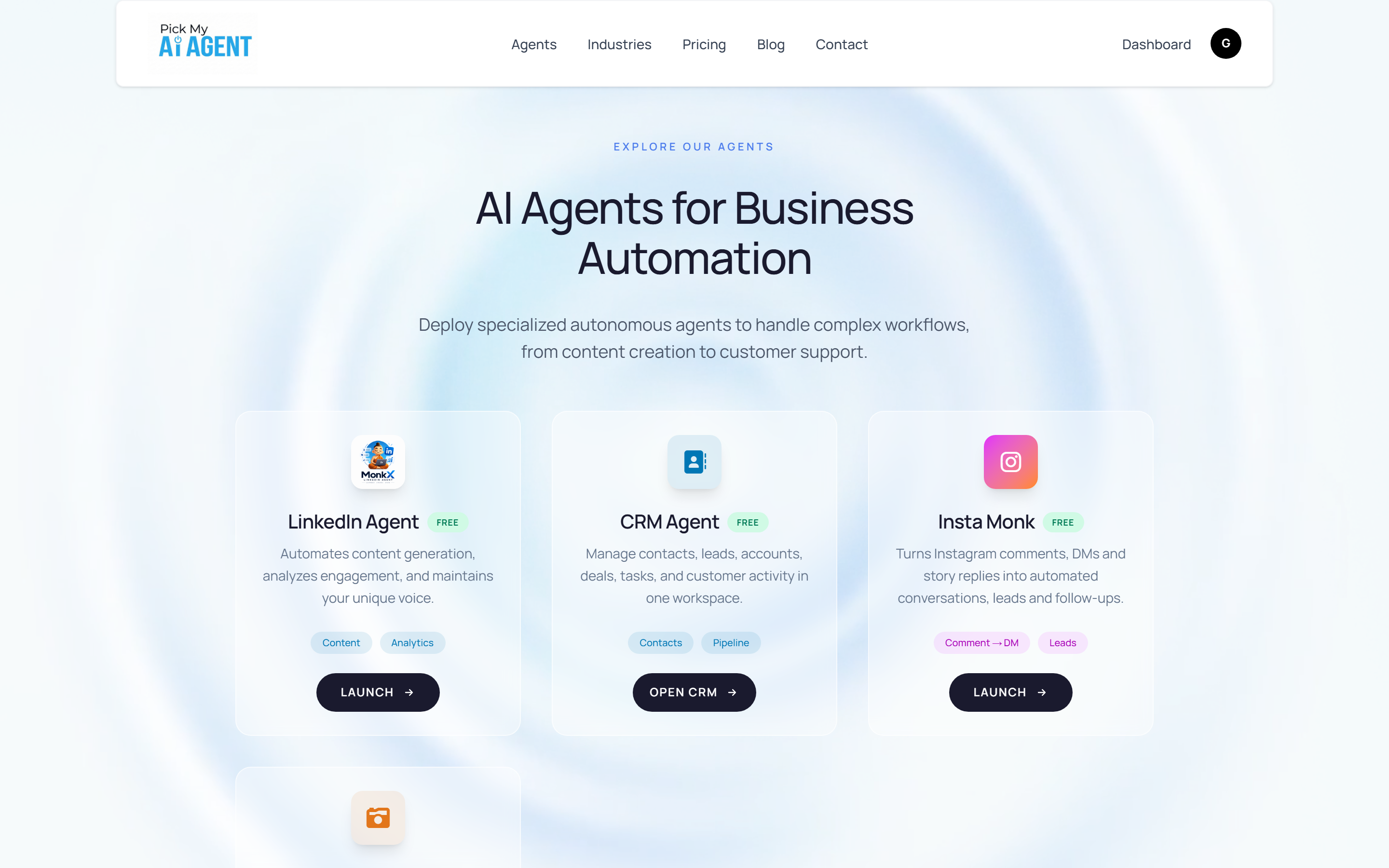
👉 Click "Add agent" (or "My Agents" in the top nav) to open the Agent Marketplace — every available agent with a Launch button, including the LinkedIn Agent, CRM Agent, and Insta Monk.