
All Features — What MonkX Can Do
A complete tour of everything inside the LinkedIn Agent. Each feature is listed separately so you can jump straight to what you need.
1. Chat workspace
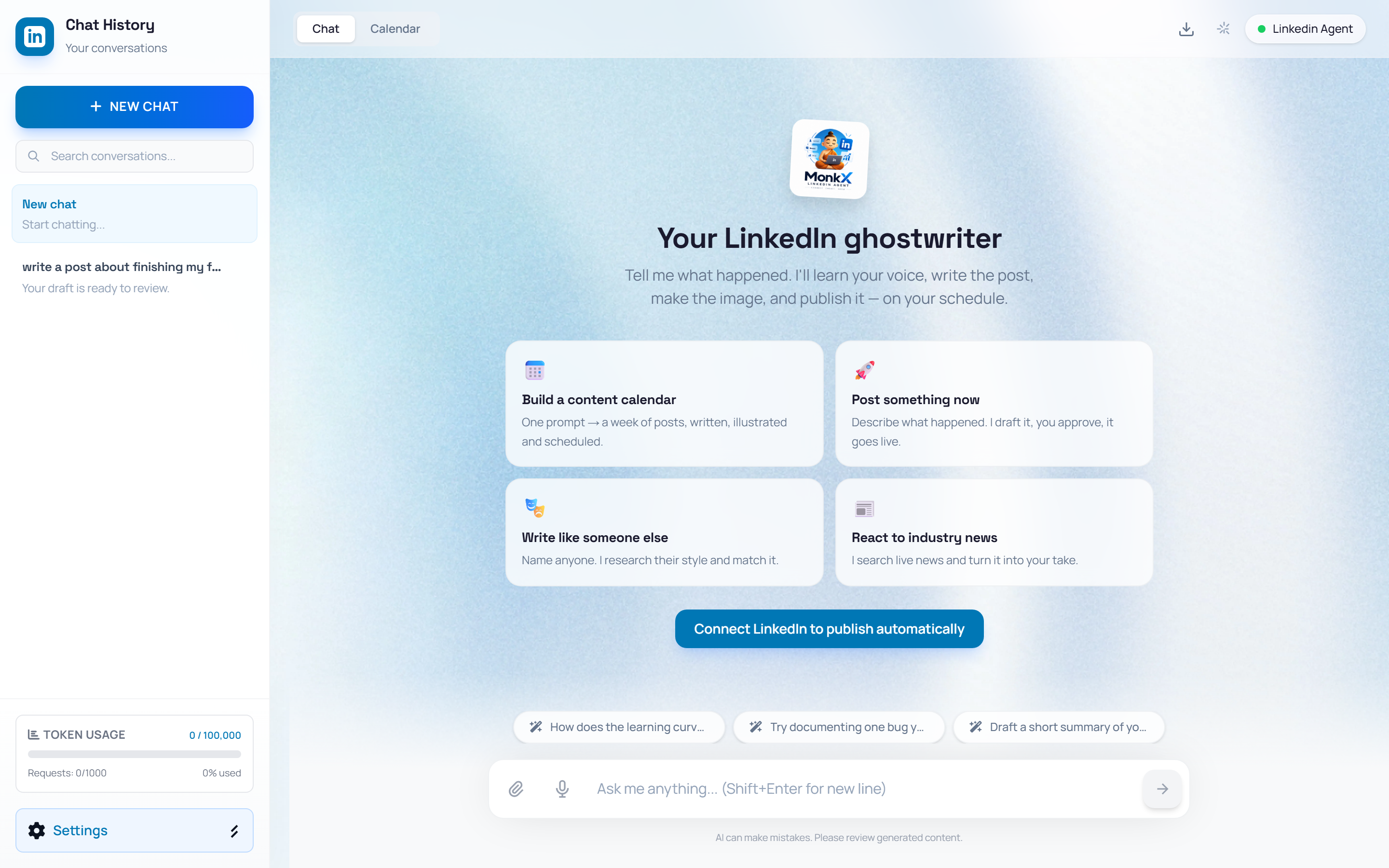
The main screen is a conversation with MonkX. Everything happens here — you describe what happened, MonkX writes the post. The left Chat History sidebar keeps every conversation: click one to reopen it, use the search bar to find old chats, or press + NEW CHAT for a fresh start.
2. Prompt cards
On a new chat, four ready-made cards get you started in one click: Build a content calendar (a week of posts from one prompt), Post something now (describe it, MonkX drafts it), Write like someone else (mimic a style you name), and React to industry news (MonkX searches live news and writes your take).
3. AI replies with follow-up choices
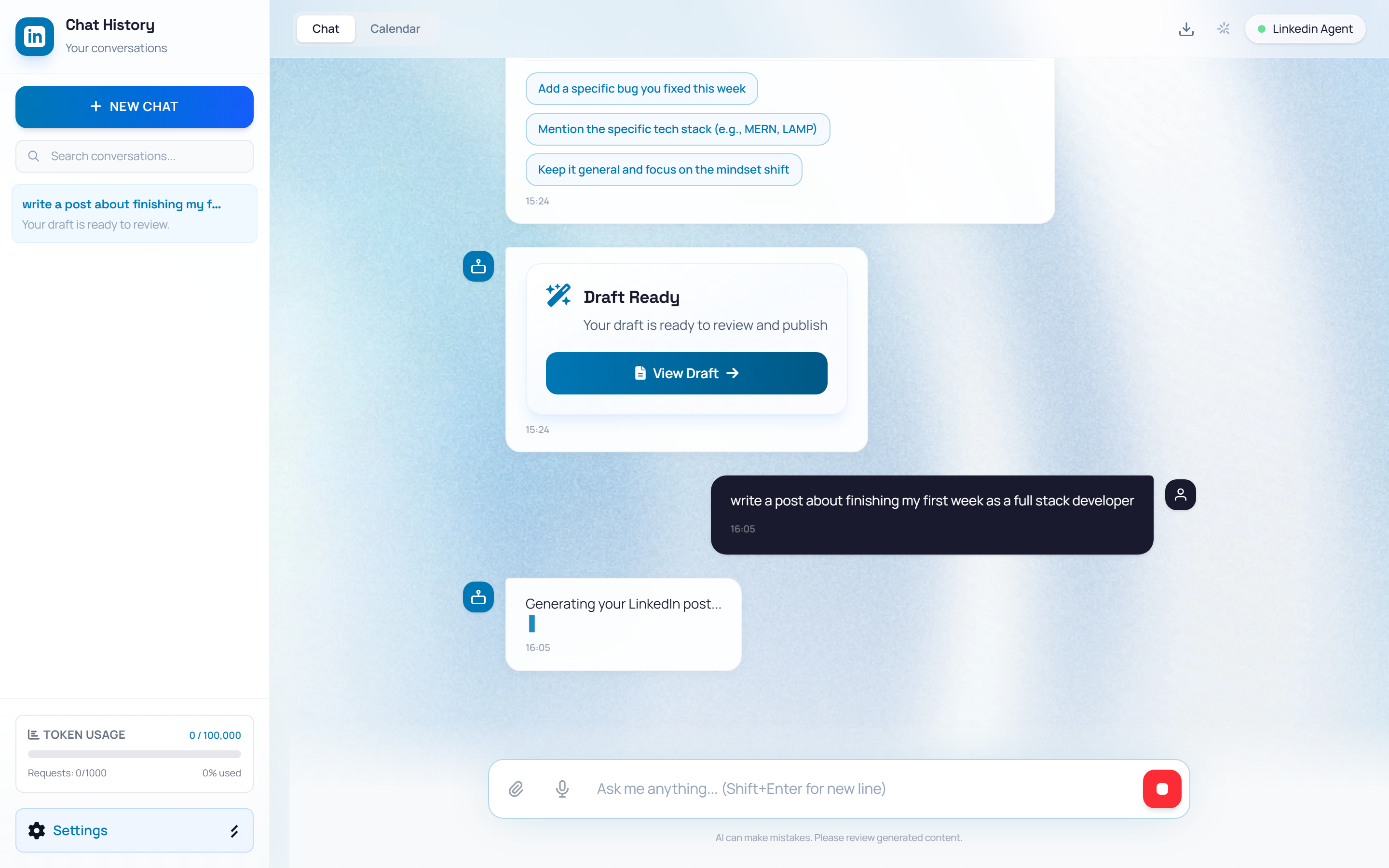
When MonkX needs a detail to make the post yours, it replies with tappable option chips — for example, "Add a specific bug you fixed" or "Mention the tech stack". Click a chip or just type your own answer. MonkX remembers your answer instead of asking again.
4. Draft Ready → Review & Publish
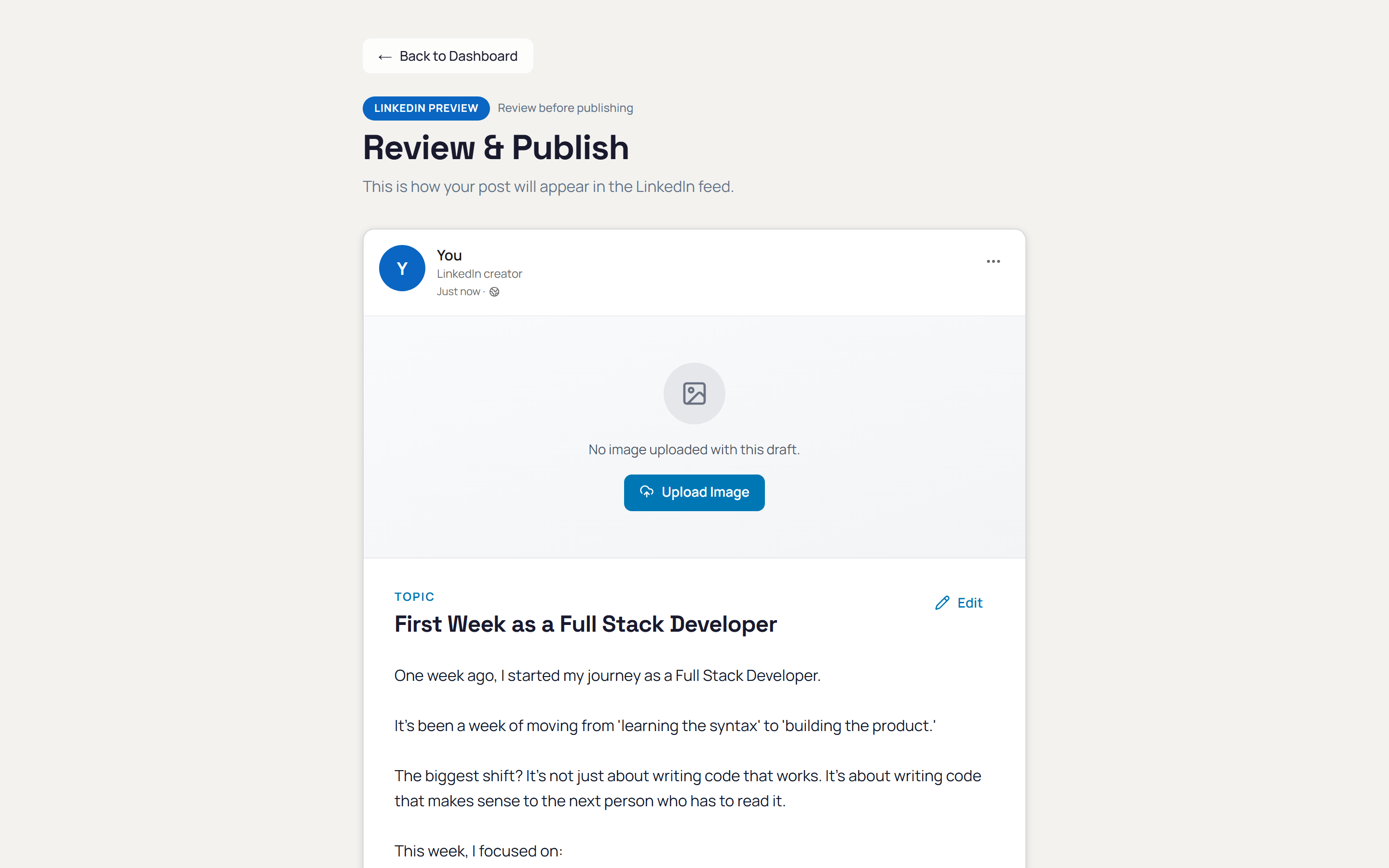
When your draft is done, a Draft Ready card appears in the chat. Click View Draft to open the Review & Publish page — a LinkedIn-accurate preview where you can edit the text, upload an image, then publish now or schedule it.
5. Voice input (dictation)
Press the mic icon in the input bar and just talk — even for several minutes. Your words transcribe live into the input box as you speak. Stop, review or edit the text, then send it yourself. Nothing is sent automatically.

6. Media attachments
The attach icon next to the mic lets you add photos or a video to your prompt. Attachments appear as previews above the input before you send, and can be used as the post image.
7. AI content calendar
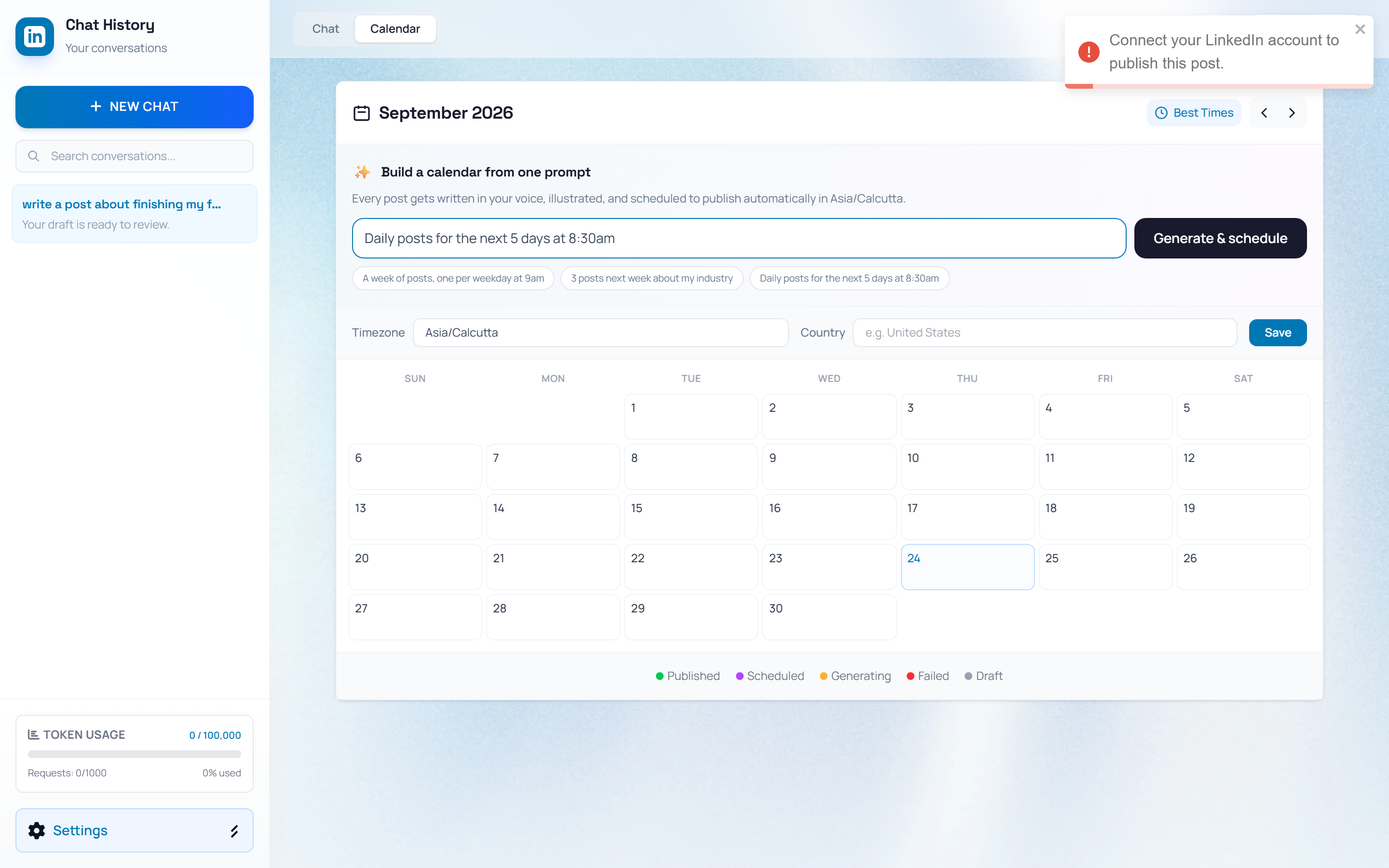
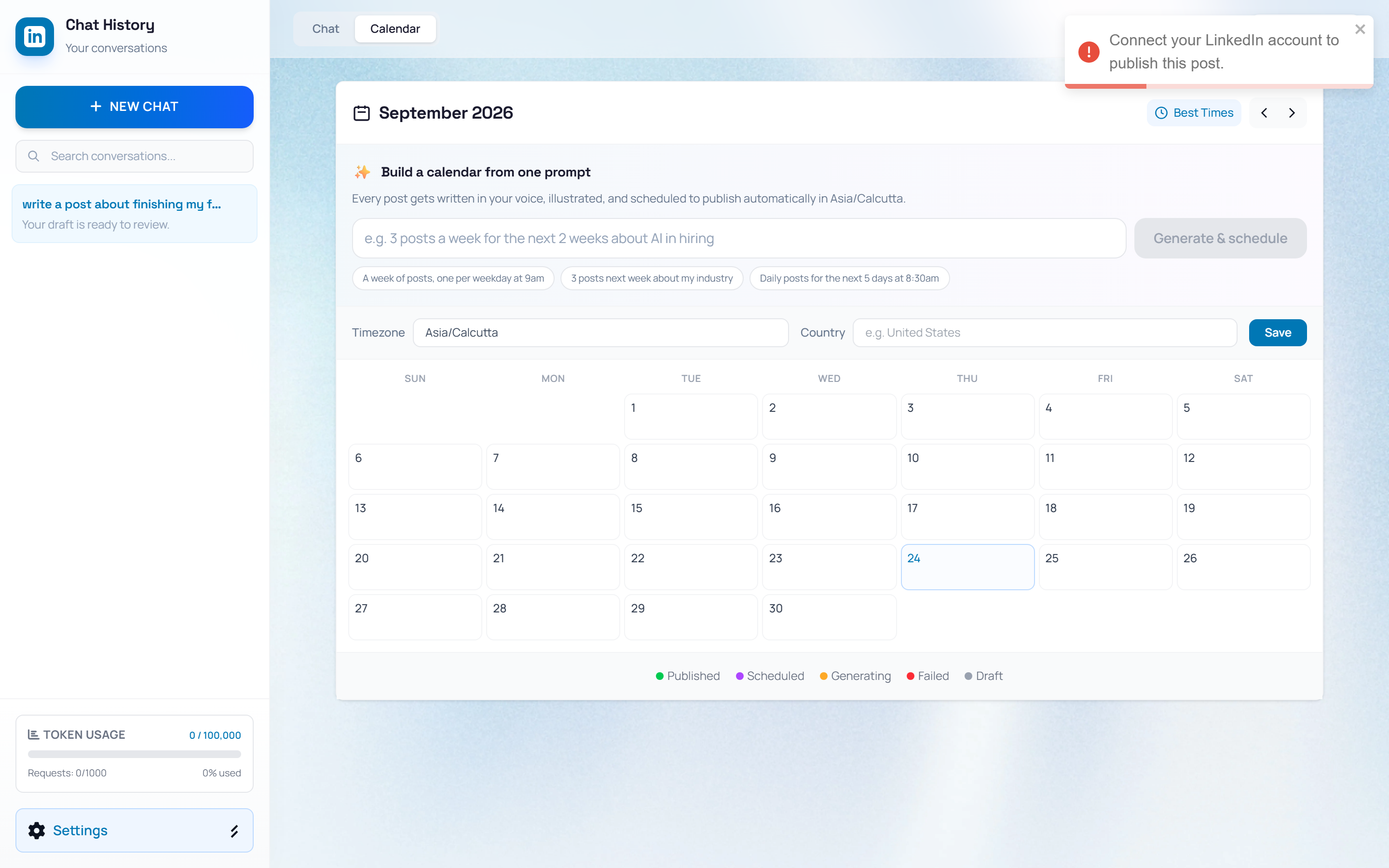
Switch to the Calendar tab and use “Build a calendar from one prompt” — describe a plan like “Daily posts for the next 5 days at 8:30am” and click Generate & schedule. MonkX writes, illustrates, and schedules every post automatically.
8. Calendar status tracking
Every post on the calendar is color-coded: Published, Scheduled, Generating, Failed, or Draft. Click a post to review it, reschedule it, or delete it. The Best Times button suggests posting times from your timezone and country.
9. Persona learning
MonkX learns as you chat. Tell it your role, industry, audience, or style preferences and it saves them to your profile — the VOICE progress bar in the top-right fills as your profile grows. Review everything it learned under Settings → Edit Basic Info → Saved Learning Data.
10. Settings menu
The Settings button at the bottom of the sidebar holds: Edit Basic Info (persona form), Writing Coach & Studio (train your voice deeper), Billing & Plan, Clear History, and Logout LinkedIn.
11. Token usage meter
The sidebar shows your Token Usage — tokens consumed and requests made against your plan limits — so you always know where you stand.
12. LinkedIn connection
Drafts work without a connection, but publishing needs one. Click Connect LinkedIn in the chat (or in Settings) once — after that, MonkX can publish and schedule automatically on your behalf.