Create & Publish Content
The real MonkX workflow — from a one-line prompt to a published or scheduled LinkedIn post. Every screenshot below is from a live session.
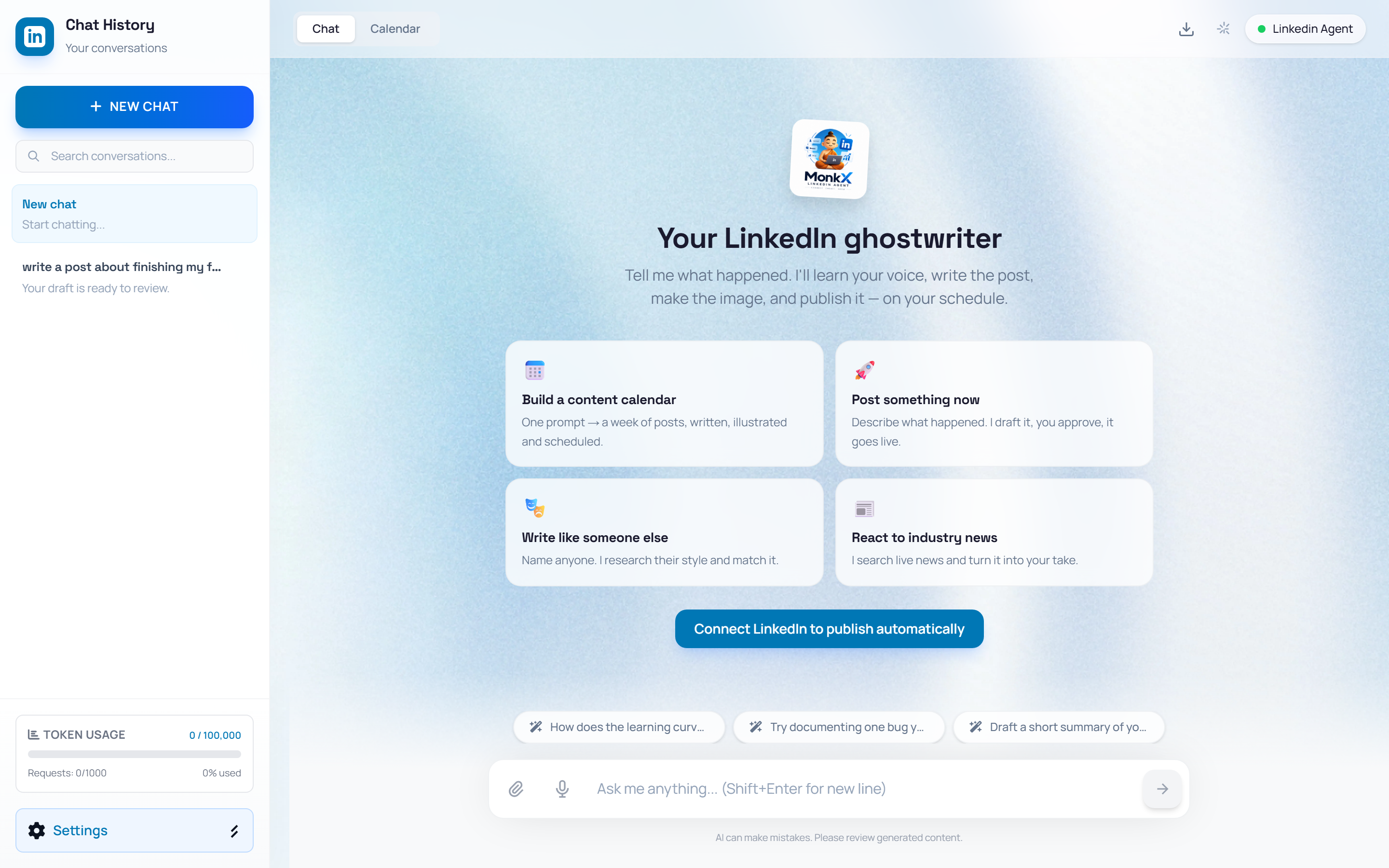
Open the LinkedIn Agent
👉 From your Dashboard click Open agent on the LinkedIn Strategist card (or My Agents → Launch). You land on the Chat tab with prompt cards in the center and your conversations in the left sidebar.
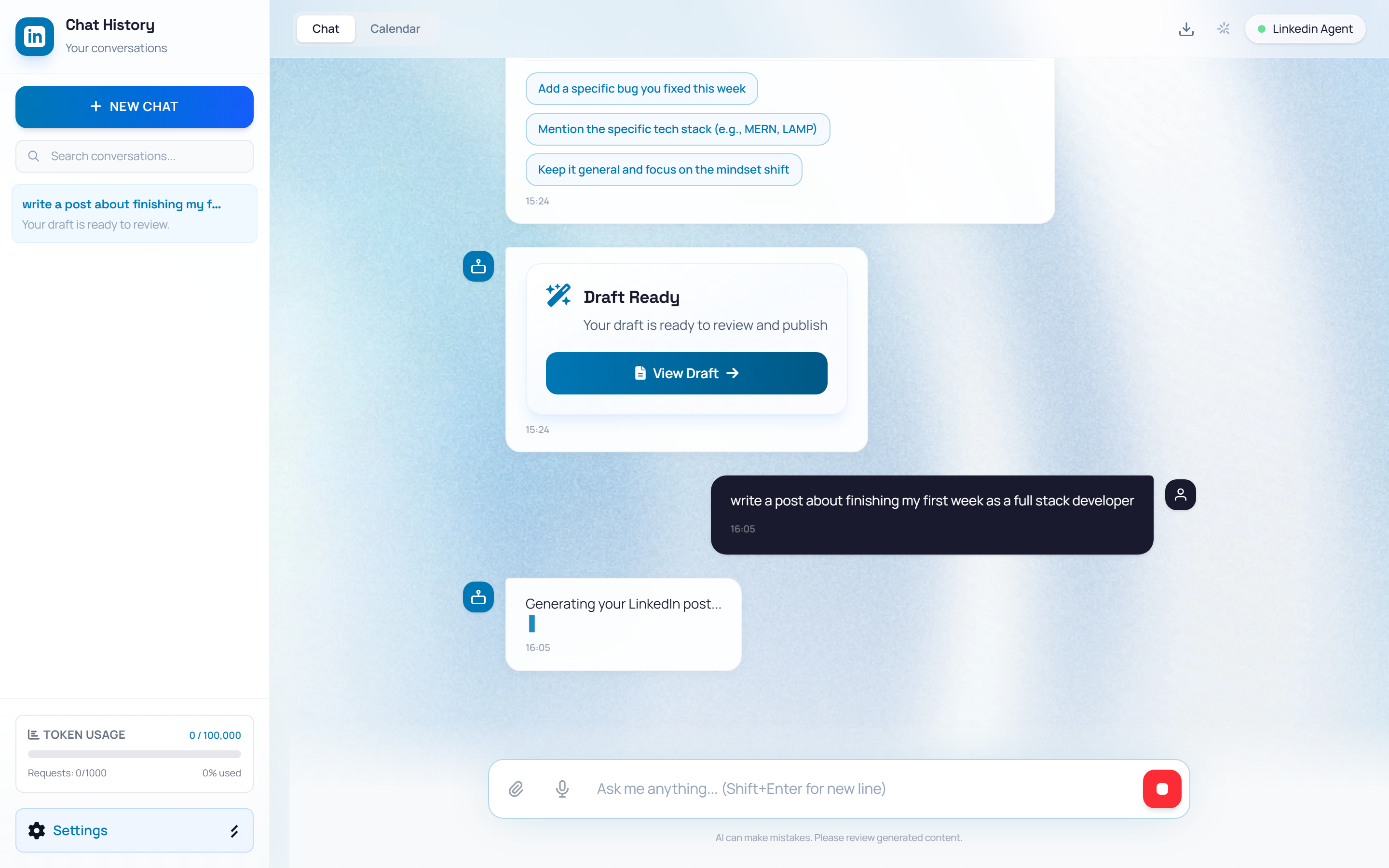
Give a small instruction
👉 Type a simple prompt in the "Ask me anything..." bar — for example: "write a post about finishing my first week as a full stack developer". Press Enter to send. You can also click a prompt card, or press the mic and dictate instead.
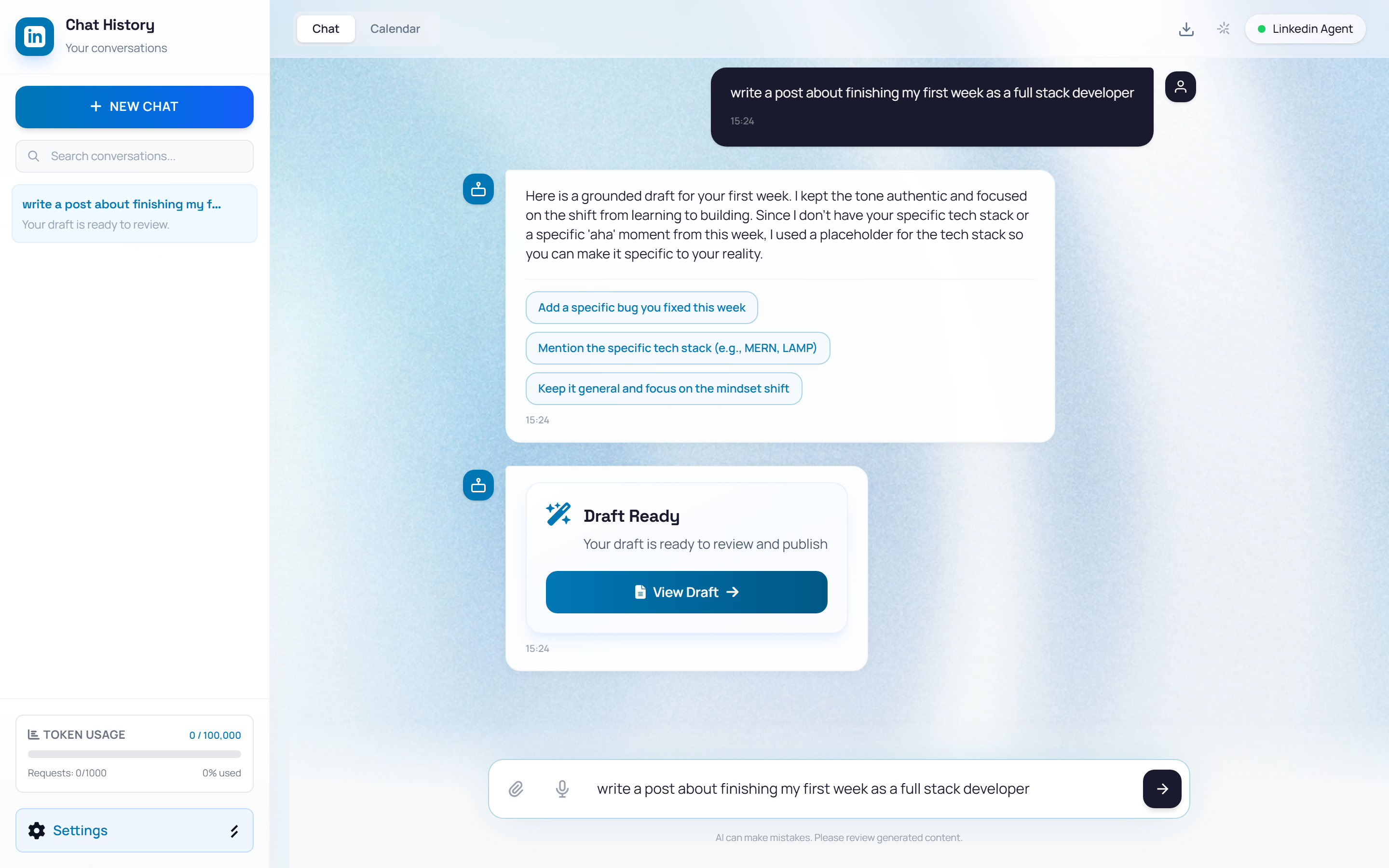
Answer MonkX and get the draft
👉 If a key detail is missing, MonkX replies with tappable option chips — e.g. "Add a specific bug you fixed", "Mention the tech stack", or "Keep it general". Click a chip or type your own answer — it remembers and does not ask again. When the post is ready, a Draft Ready card appears — click View Draft.
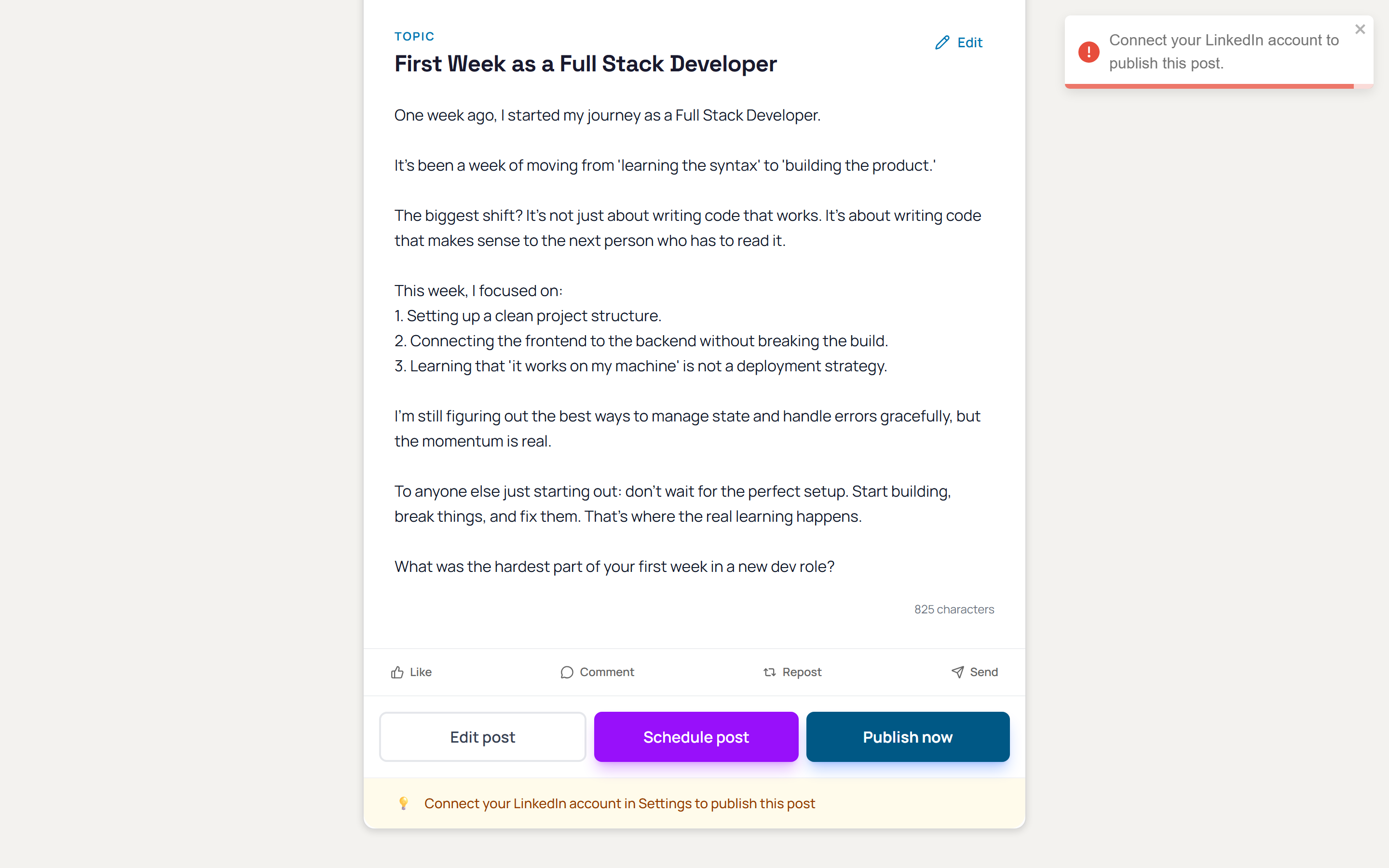
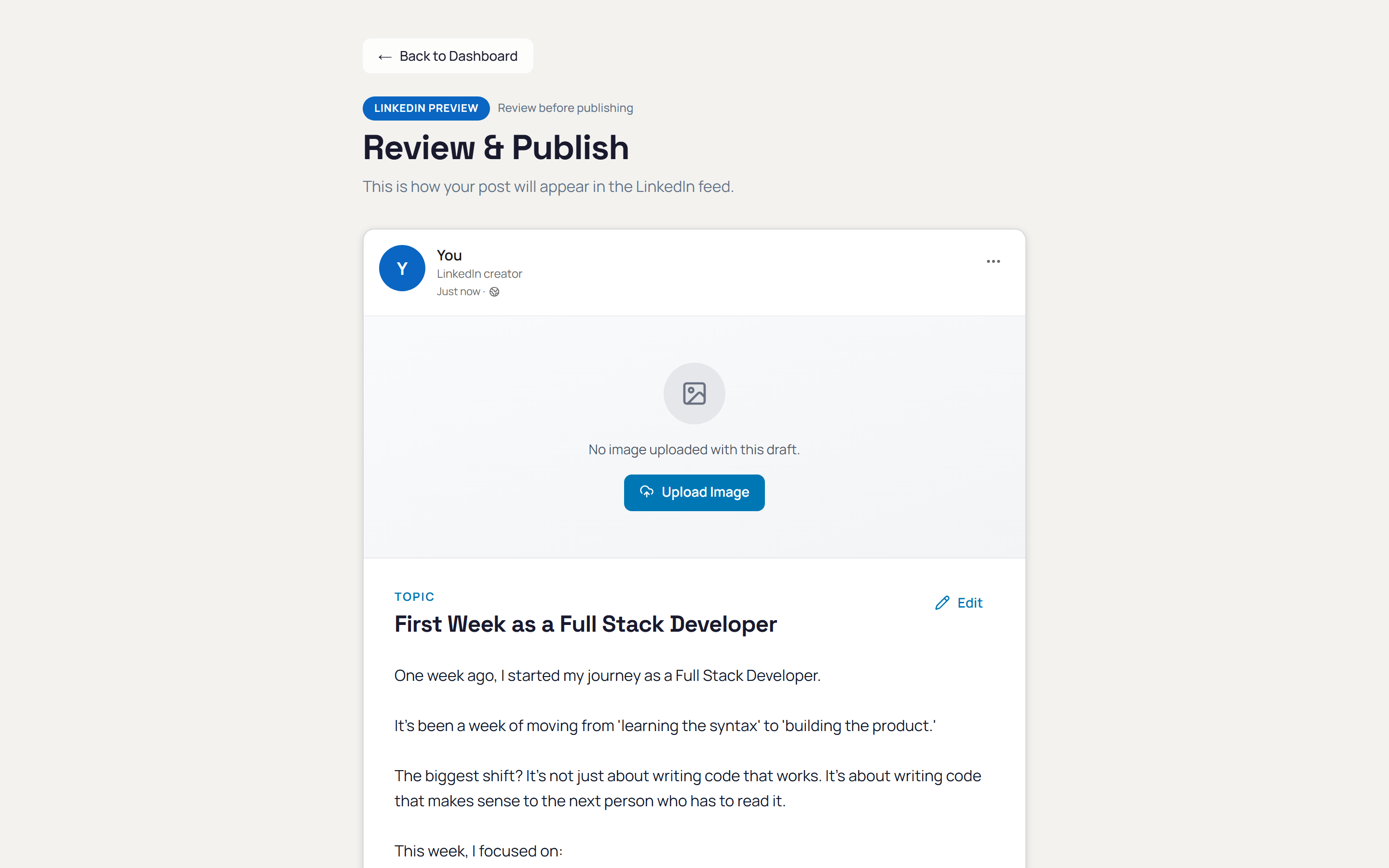
Review your post
👉 The Review & Publish page shows exactly how the post will look in the LinkedIn feed — your name, the topic title, the full caption, and a character count. Check the tone and facts before anything goes out.
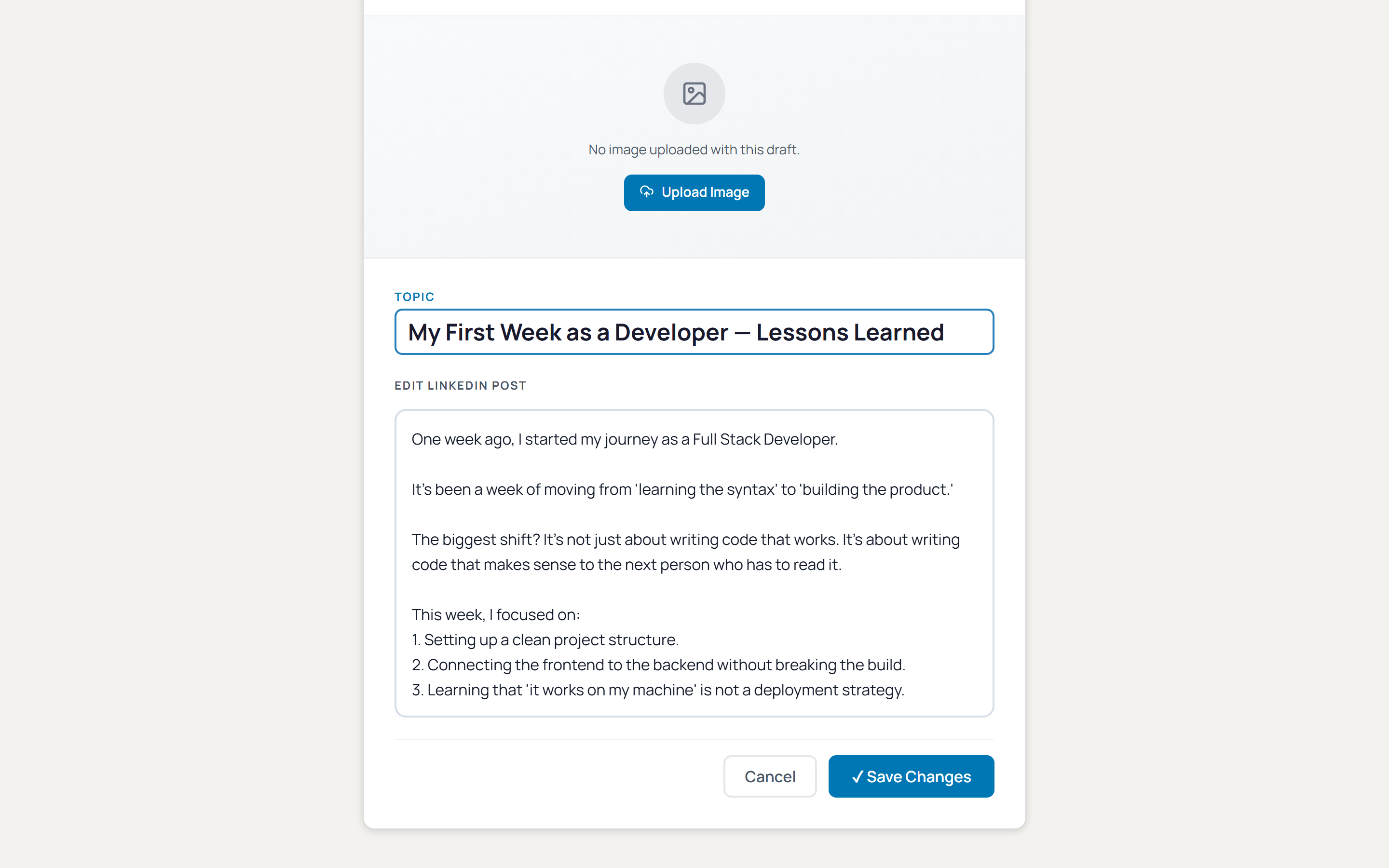
Edit the post
👉 Click "Edit post" to rewrite any part directly in the editor, then Save Changes (or Cancel to discard). Click "Upload Image" to attach a visual. Prefer chatting? Go back and tell MonkX what to change — "make it shorter", "stronger hook" — and it redrafts.
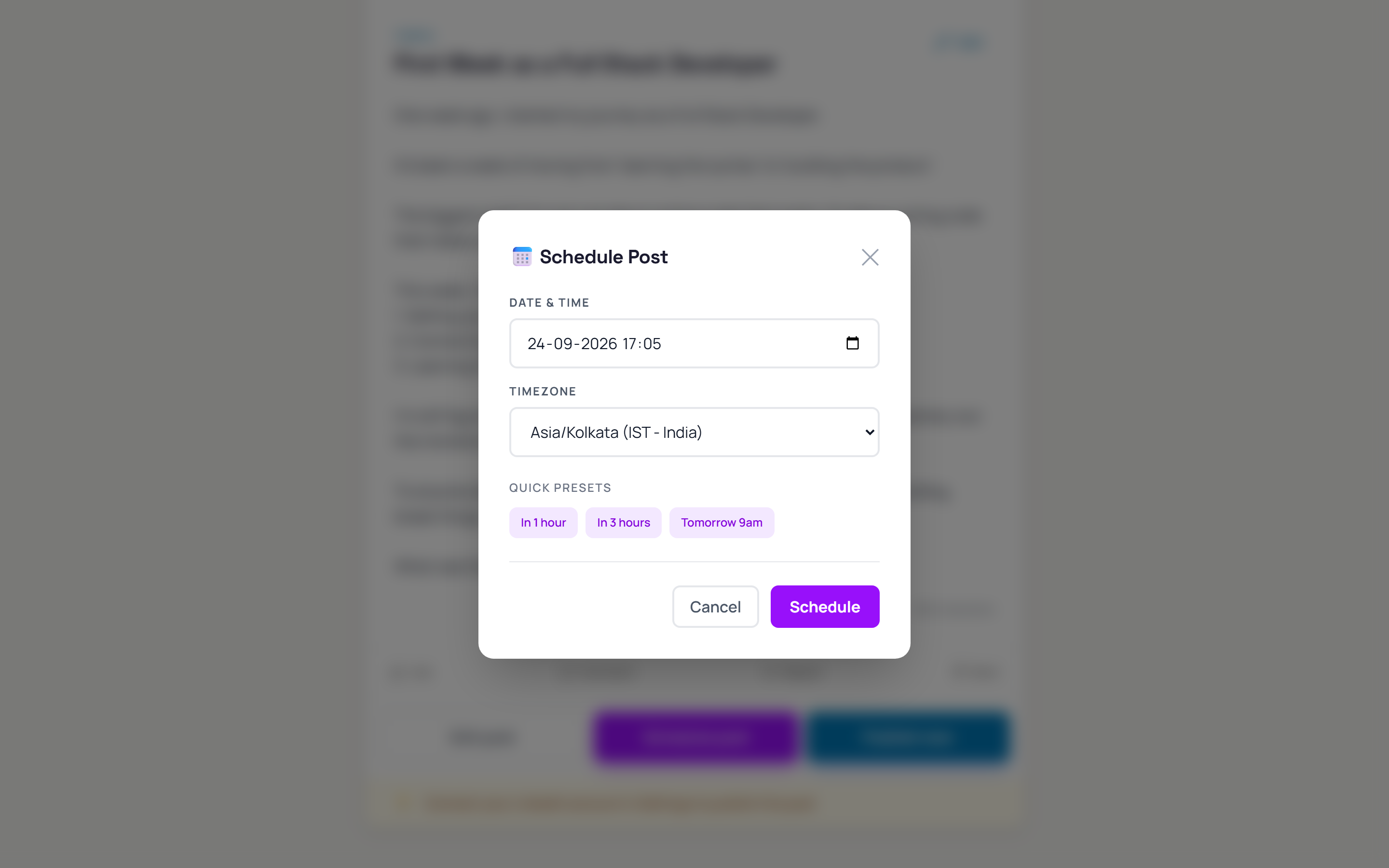
Schedule it (optional)
👉 Click "Schedule post" to open the scheduler: pick a date and time, confirm the timezone, or use a quick preset like "Tomorrow 9am". Scheduled posts appear on your Calendar tab until they go live.
Publish now
👉 Click "Publish now" to post immediately. If LinkedIn is not connected, a notice tells you to connect first — do it once in Settings and the button activates. After publishing, the page shows a link to the live post on LinkedIn.