
Settings
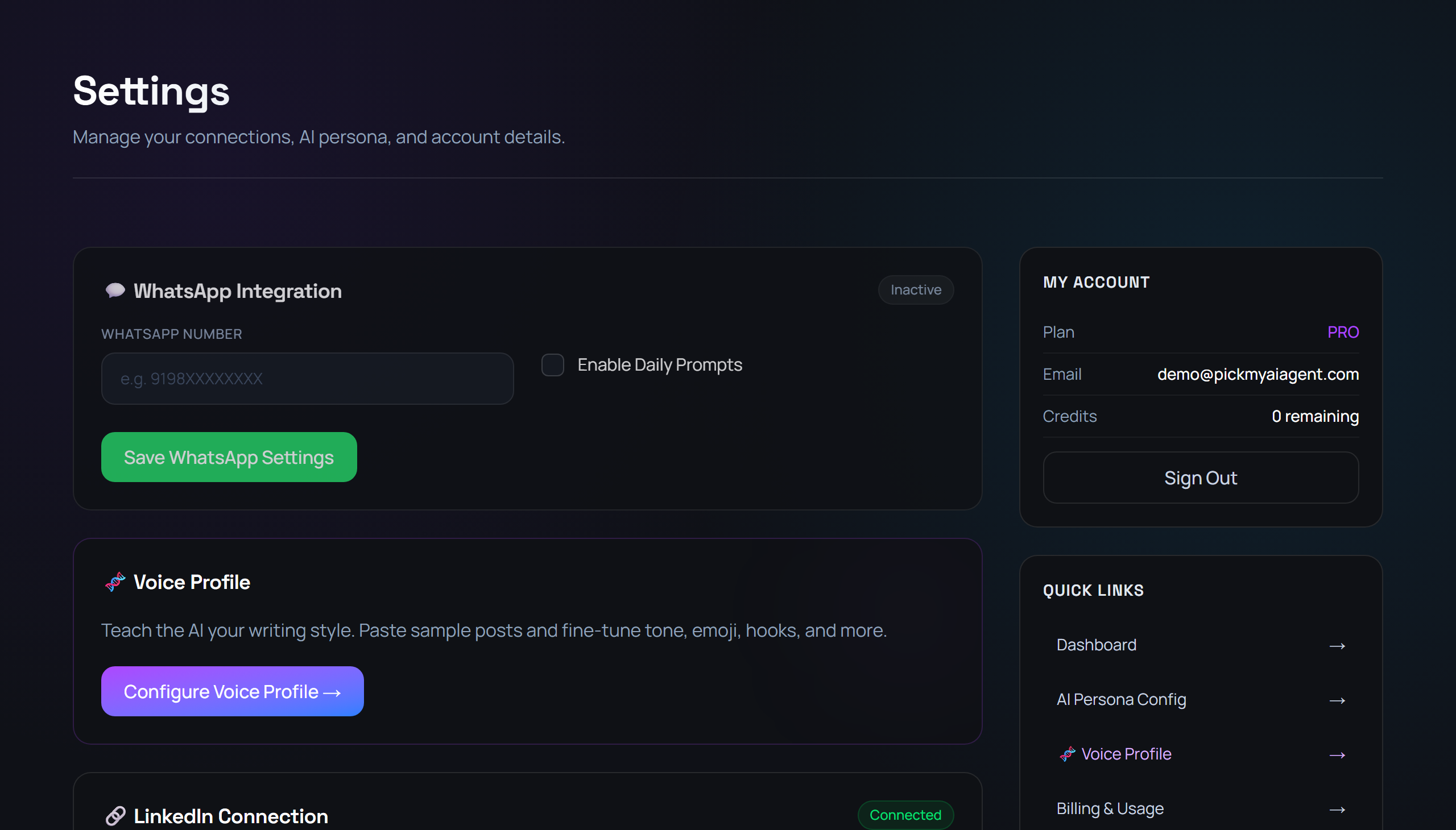
The Settings page at /dashboard/settings lets you manage your LinkedIn connection, configure your AI Voice Profile, and view your account plan and credits.
Settings page layout
The page is split into a main column and a sidebar.
Voice Profile
Teach the AI your writing style. Click "Configure Voice Profile" to open voice configuration.
LinkedIn Connection
Shows Connected / Disconnected badge. Use "Connect LinkedIn Profile" or "Disconnect Account".
My Account (sidebar)
Shows your Plan, Email, and Credits remaining. Includes a Sign Out button.
Quick Links (sidebar)
Links to: Dashboard · AI Persona Config · Voice Profile · Billing & Usage.
STEP 1
Open Settings
👉 From your Dashboard, click "Settings" in the top navigation bar.
STEP 2
Configure your Voice Profile
👉 Find the "Voice Profile" card. Click the "Configure Voice Profile" button to open the voice configuration page.
STEP 3
Connect or disconnect LinkedIn
👉 Scroll to the "LinkedIn Connection" card. A green "Connected" or grey "Disconnected" badge shows your state. Click "Connect LinkedIn Profile" to link, or "Disconnect Account" to unlink.
STEP 4
Check your account details
👉 In the right area, the "My Account" card shows your Plan, Email address, and Credits remaining.
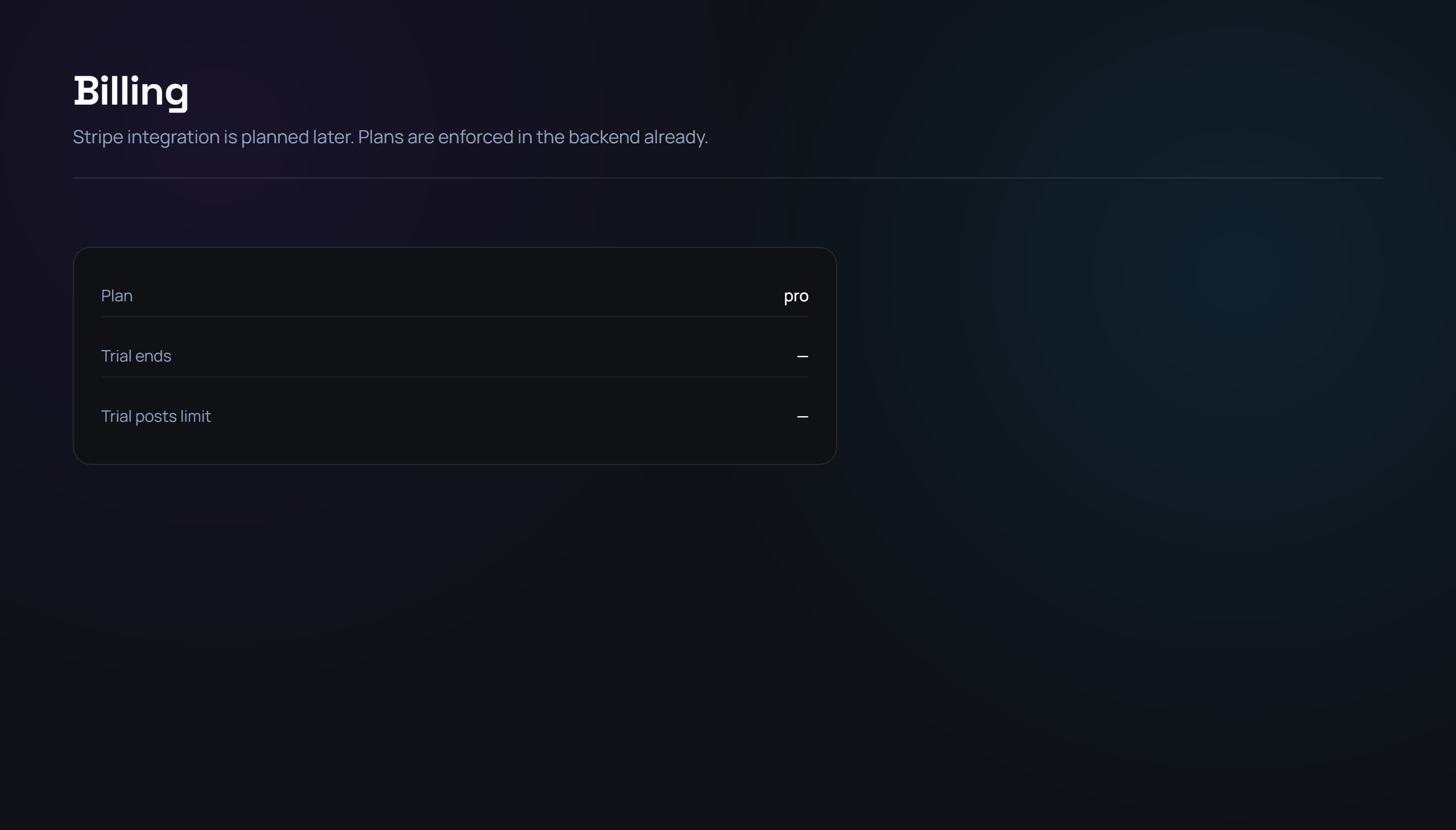
TipThe Quick Links panel below My Account gives you one-click access to the AI Persona Config and the Voice Profile page.
⚡ WORKFLOW SUMMARY
1OPEN SETTINGS
➔2CONFIGURE VOICE PROFILE
➔3MANAGE LINKEDIN
➔4CHECK ACCOUNT
✓COMPLETED